Filter out weak setups with an AI model trained on your own trades
Train a model on your saved trades, test it on untouched data and compare it with your best fixed stop loss and take profit.
To filter out weak setups with AI, train a model in the AI training tab on the trades you saved for a strategy, then check how it did on test data it never saw. The model can skip setups it rates poorly and choose the stop loss, take profit and risk for the ones it takes.
Who this is for and what you get
This guide is for you if a strategy already produces many saved trades and you want to know whether a model can tell the better setups from the worse ones. You end up with a saved AI and a comparison of the model against your best fixed stop loss and take profit on test data. The saved AI can then be selected when you set up an automation.
Before you start
- A plan that includes AI model training. Plans also limit the number of training runs per month. See Plans and billing.
- Many saved trades. The model learns from your history, and the history is split into three parts, so a small history leaves very little to learn from or test on. An auto backtest is the usual source.
- At least one saved configuration. Without one the page says Save an analysis configuration before training an AI. See Find the best stop loss and take profit.
- The graph that generated the trades. Training checks that every historical trade was made with the graph you select. If the history is old or came from other graphs, delete it and regenerate it with the graph you will select.
1. Open AI training
Open the strategy and choose the AI training tab. If your plan does not include it, a notice says so and has a See plans button.
2. Choose the training data
- Under Saved configuration, choose the configuration whose trades the model learns from.
- Under Training graph, choose the graph that generated the history.
- Optionally use Load saved AI settings to start from the settings of an AI you saved before.
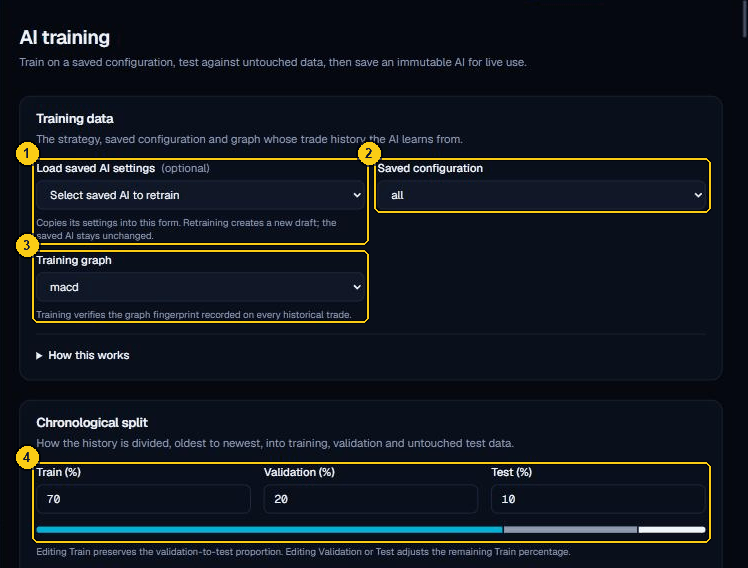
- Load saved AI settings (optional) copies the settings of a saved AI into the form.
- Saved configuration: the configuration whose trades the AI learns from.
- Training graph: the graph whose trades are used.
- Chronological split: Train (%), Validation (%) and Test (%), oldest to newest.
3. Set the chronological split
The history is divided from oldest to newest into Train (%), Validation (%) and Test (%). The model learns from the first part, validation decides when to stop, and the test part stays untouched until the final evaluation. The test part is the one that matters for your decision. If the percentages do not add up, an error appears under the bar.
4. Choose what the model may see
Under input features, tick the facts about each setup that are known before the order is placed. Hour and weekday use the UTC time of the setup. Each section has a How this works note.
5. Choose targets and risk
- Under Stop losses and Named take profits, tick the exits the model may choose between.
- If you want more choices, choose Add RR range and set Min RR, Max RR and Step. The page shows how many combinations this gives per setup and the maximum allowed.
- Set the risk limits: Max expected drawdown (%), Risk cap per trade (%), Drawdown trade horizon and Confidence (%). Orders that would exceed the cap are skipped, not resized.
6. Train and evaluate
Choose Train and evaluate AI. A progress bar and status line show the stage. The progress is stage progress, not a time estimate. Tree limits and learning rate are managed by the backend, so there is nothing else to configure.
7. Read the results
Under Results, choose an Evaluated AI.
- AI vs configuration compares the model with your configuration's best fixed stop loss and take profit on the same test opportunities. Skipped trades stay flat. Turn on Show R instead of compounded % to see R.
- The metric cards put the AI and the configuration side by side. The participation figures show how many trades the AI took and how many it skipped.
- Held-out model quality shows test log loss, Brier score and how many trades were in each split.
- The decision distribution and feature importance charts show what the model chose and which inputs it used.
Ask three questions. Did the AI beat the fixed configuration on the test data? Did it do so over enough test trades? Does the result survive a retrain with a different split? An AI that only matches the configuration, or wins on a handful of test trades, has not shown that it adds anything. Notices on the page flag older models that should be retrained.
8. Save the AI
Choose Save AI and give it a name. A saved AI cannot be edited. To change anything, retrain and save a new one. If you later change the graph or the configuration, you need a new AI. Saving does not activate real trading.
Common problems
- Your plan does not include AI model training, or has reached its limit of AI training runs per month: wait for the monthly reset or upgrade.
- The page says Sign in to train an AI.: log in again.
- The history does not match the graph: delete the saved trades and generate them again with the graph you select.
- A configuration with no positive adjusted edge: the page says its recommended risk is zero. Revisit the strategy before training.
Next
- Use the saved AI in an automation: Go live with a backtested strategy on cTrader. Read the risks first.
- Reference: AI training, Live chart, orders and automations.